

Images
Upload images to your docs and have them committed alongside your content.
The editor uploads each image to image storage first, then commits it to your GitHub repo on your next save. You work with the image right away, and the file lands in the repo when your changes do.
Upload an image
Insert an image block
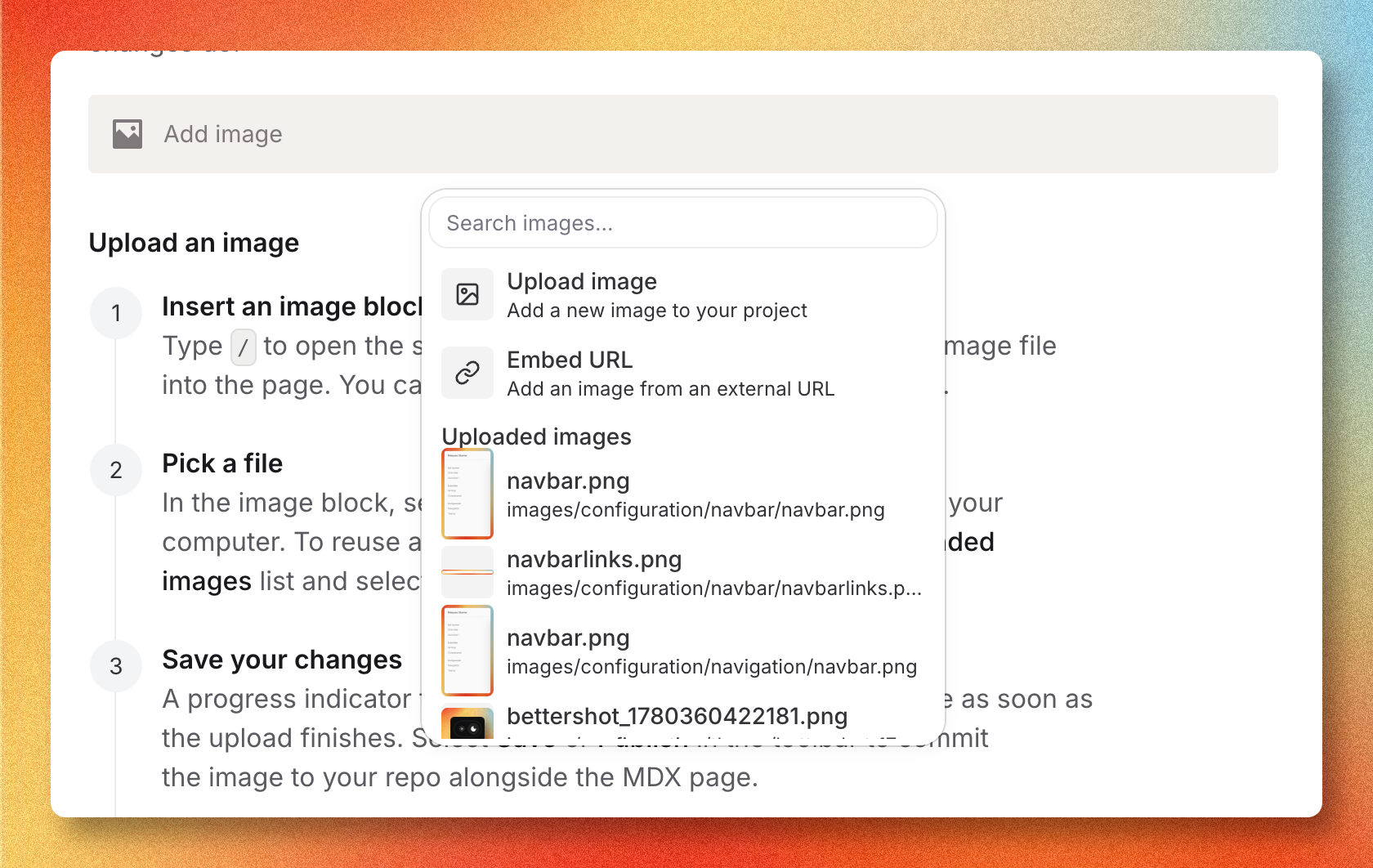
Type / to open the slash menu and choose Image, or drag an image file
into the page. You can also paste an image from your clipboard.
Pick a file
In the image block, select Upload image and choose a file from your computer. To reuse a file already in your repo, search the Uploaded images list and select one.
Save your changes
A progress indicator tracks the upload. The image renders inline as soon as the upload finishes. Select Save or Publish in the toolbar to commit the image to your repo alongside the MDX page.
Until you save, uploaded images live in image storage and in your browser only. Reloading the page before saving discards them.
Where images live in your repo
The editor commits each image under an images/ folder that mirrors the page it belongs to. A page at docs/editor/images.mdx writes uploads to images/docs/editor/images/<filename>.
References in the MDX file are written as relative paths, so the page renders correctly in GitHub previews and after a clone.
To embed an image hosted elsewhere instead of uploading one, open the image block and select Embed URL. The editor inserts the absolute URL without copying the file into your repo.
Supported formats and size
The editor accepts these formats:
image/pngimage/jpegimage/gifimage/webpimage/avif
Each file must be under 20 MB. For larger files or video, host them on a CDN and embed the URL instead.
Replace or remove an image
To replace an image, select the image block and pick a new file from the upload panel. The new file uploads to image storage and replaces the reference in the MDX. The previous file stays in your repo until you delete it from the file tree.
To remove an image from a page, select the block and press Delete. To remove the file from your repo, open the file in the file tree and delete it there. Both actions commit on the next save.
Deleting an image from the file tree removes it from your repo on the next commit. Pages that still reference the file render a broken image until you update them.