

Members and roles
Invite teammates and choose between admin and member access.
An organization groups your sites and the people who work on them. Every person in an organization is a member with one of three roles: Owner, Admin, or Member.
Prerequisites
- An organization. See the Quickstart to create one.
- The Owner or Admin role on the organization. Members can view the Members page but can't invite, change roles, or remove people.
Invite a member
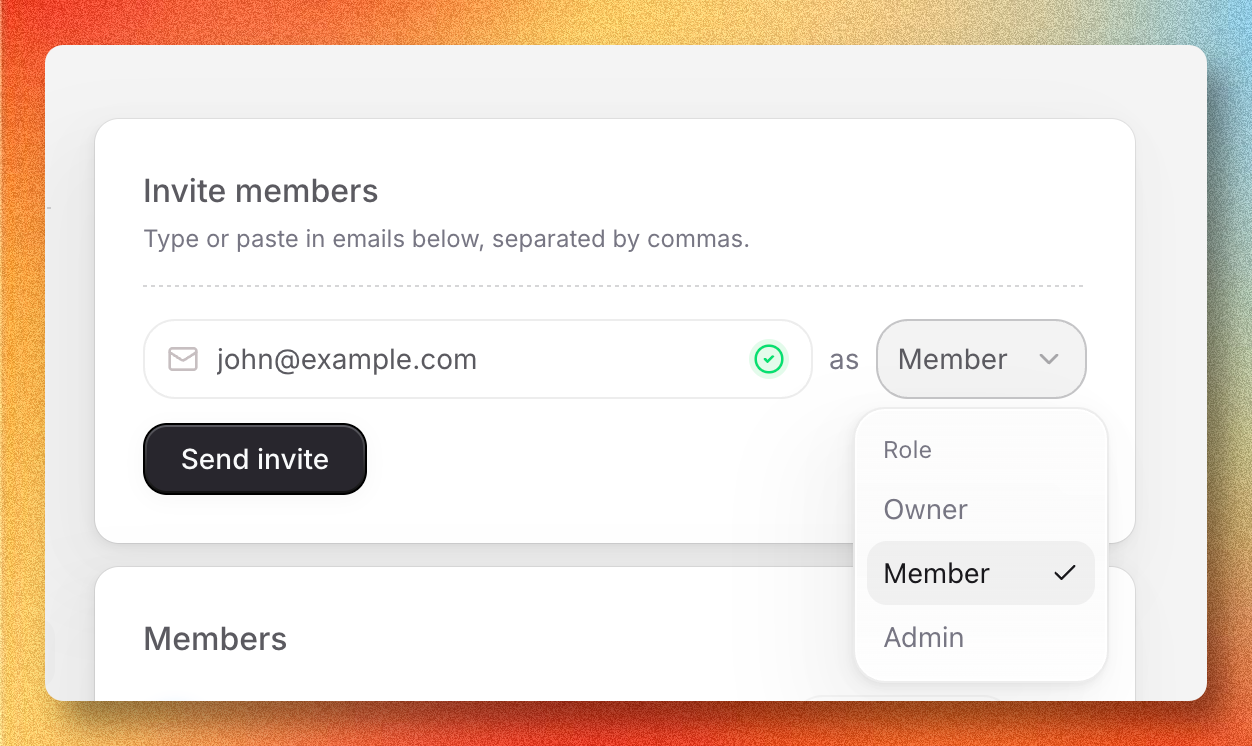
Open the Members page
In your site dashboard, open Settings. Under the Organization section, select Members.
Enter the email
In the Invite members card, type the invitee's email address.
Pick the role
Open the role dropdown next to the email field and select Member or Admin. See Roles for what each can do.
Send the invite
Select Send invite. The pending invitation appears in the members list below the form.
The invitee receives an email with a link to join the organization. Opening it takes them to the invitation page where they select Accept invite to join or Decline to reject. After accepting, they land in the organization dashboard.
Invitations expire after a set window. If the invitation shows the Expired badge, cancel it and send a new one.
Invites are sent one email at a time. Repeat the steps above for each teammate.
Roles
| Role | Manage org settings | Invite, remove, and change roles | Edit sites and content | Delete the organization |
|---|---|---|---|---|
| Owner | Yes | Yes | Yes | Yes |
| Admin | Yes | Yes | Yes | No |
| Member | No | No | Yes | No |
The Owner role is assigned to whoever created the organization. There is one owner per organization, and the role can't be reassigned from the Members page.
Change a member's role
Open the Members page
In your site dashboard, open Settings → Members.
Pick the new role
Find the member in the list. Open the role dropdown next to their name and select Member or Admin. The change saves immediately.
The dropdown is disabled in three cases:
- The row is your own account. Ask another admin or the owner to change your role.
- The row is the organization owner. The owner role can't be changed.
- The row is a pending or expired invitation. Cancel the invitation and send a new one with the role you want.
Remove a member
Removing a member revokes their access to every site in the organization. The action can't be undone. Re-invite them to restore access.
Open the Members page
In your site dashboard, open Settings → Members.
Open the remove panel
Find the member in the list and select the remove icon on the right of the row.
Confirm
Select Yes, remove. To back out, select Don't remove.
To revoke a pending invitation before it's accepted, open the remove panel on the invitation row and select Yes, cancel.