

Connect GitHub
Install the Bloques GitHub App and choose the repository and branch to publish from.
Prerequisites
- A Bloques site. See the Quickstart to create one.
- A GitHub account with permission to install Apps on the target personal account or organization.
Install the Bloques GitHub App
The App needs read and write access on the repositories it publishes: read to fetch content on deploy, write to commit edits from the browser editor.
Open the install screen
A site with no repository opens the Connect GitHub page. For a site that already publishes from a repository, open Settings and select Repository.
Start the install
Select Install GitHub App on the Connect GitHub page, or Connect Github in repository settings. Bloques redirects you to GitHub to install the App.
Choose the account
Pick the personal account or organization that owns the repository you want to publish.
Grant repository access
Select Only select repositories and pick the repository that holds your docs. Confirm to finish the install. GitHub redirects you back to Bloques.
Granting access to a single repository on first install keeps the scope tight. Add more repositories later from the App's GitHub settings page.
Choose the repository
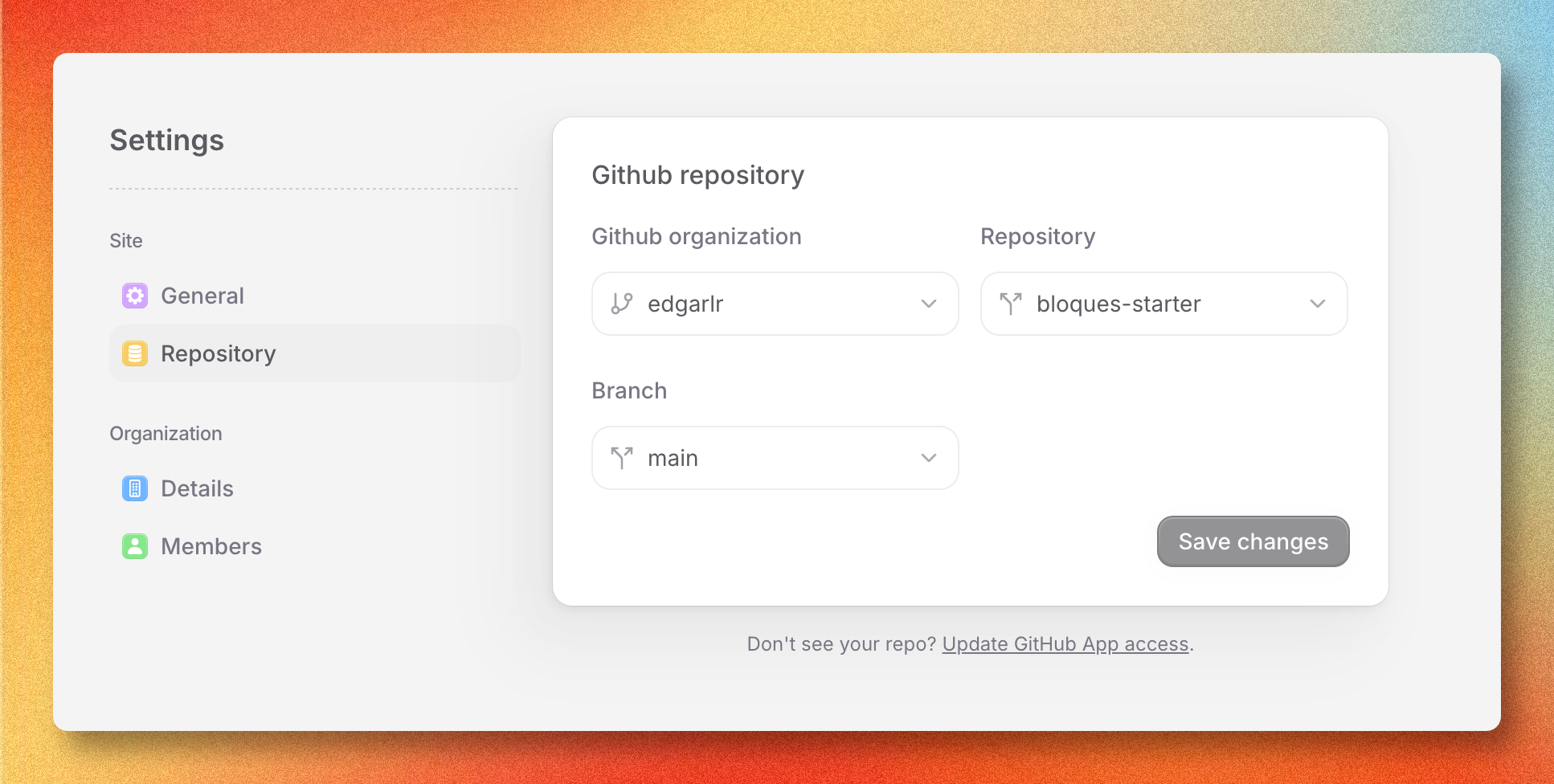
After the install callback, the repository selectors populate from the repositories the App can access, under Pick your repository and branch on the Connect GitHub page, or on the Repository settings page.
Pick the owner
Open the Github organization dropdown and select the account that owns the repository.
Pick the repository
Open the Repository dropdown and select the repository.
Save
Select Finish setup on the Connect GitHub page, or Save changes in repository settings.
Pick the publishing branch
Bloques publishes from a single branch per site. Every push to that branch triggers a deploy. Other branches don't deploy. To see one before merging, use Live preview.
Select the branch
Open the Branch dropdown and select the branch to publish from. The
repository's default branch (typically main) is the standard choice. Save
the form to apply it.
What Bloques reads from your repo
Bloques reads docs.json for site configuration and renders every .md and .mdx file as a page. See the docs.json overview for the full schema.
Troubleshooting
App not visible after install
The install callback writes the installation to the organization that was active when you started the flow. A callback that fails returns you to the page you started from and shows the reason as a toast. If the install screen still asks you to connect after the redirect, switch to the organization you installed against and start the install again.
No repositories listed
The dropdowns only show repositories the App can access. Open the App's settings on GitHub, select the installation, and add the missing repository under Repository access.
Permission errors after a repo transfer
Transferring a repository between accounts revokes the previous installation's access. Install the App on the new owner and grant access to the transferred repository, then update the owner and repository in Settings → Repository.