

Deployments
Understand how deploys work, what each status means, and how to redeploy manually.
Every push to your publishing branch triggers a build. The dashboard tracks each build as a deployment, with status, commit metadata, and per-step logs.
How deploys work
You push to the publishing branch
A git push to the branch you selected in Settings → Repository
kicks off a deploy. Edits saved from the browser editor are commits too,
so they trigger the same flow.
GitHub notifies Bloques
The GitHub App sends a push event. Bloques verifies the signature, finds the matching site, and creates a deployment record.
Bloques builds and deploys your site
The build verifies repository access, validates docs.json, and refreshes
the rendered site.
Your site updates
Once the build finishes, the new content is live at your subdomain and any custom domain attached to the site.
Deployment statuses
Each deployment moves through these states. Find them in Activity history on your site dashboard.
| Status | Meaning |
|---|---|
| Pending | Bloques received the push and queued the build. |
| In progress | The build is running: fetching the repo, validating, updating paths. |
| Successful | The build finished and the new content is live. |
| Failed | A step errored out. The previous deploy remains live. |
A failed deploy doesn't take your site down. The last successful deploy stays live until a new one succeeds.
Build logs
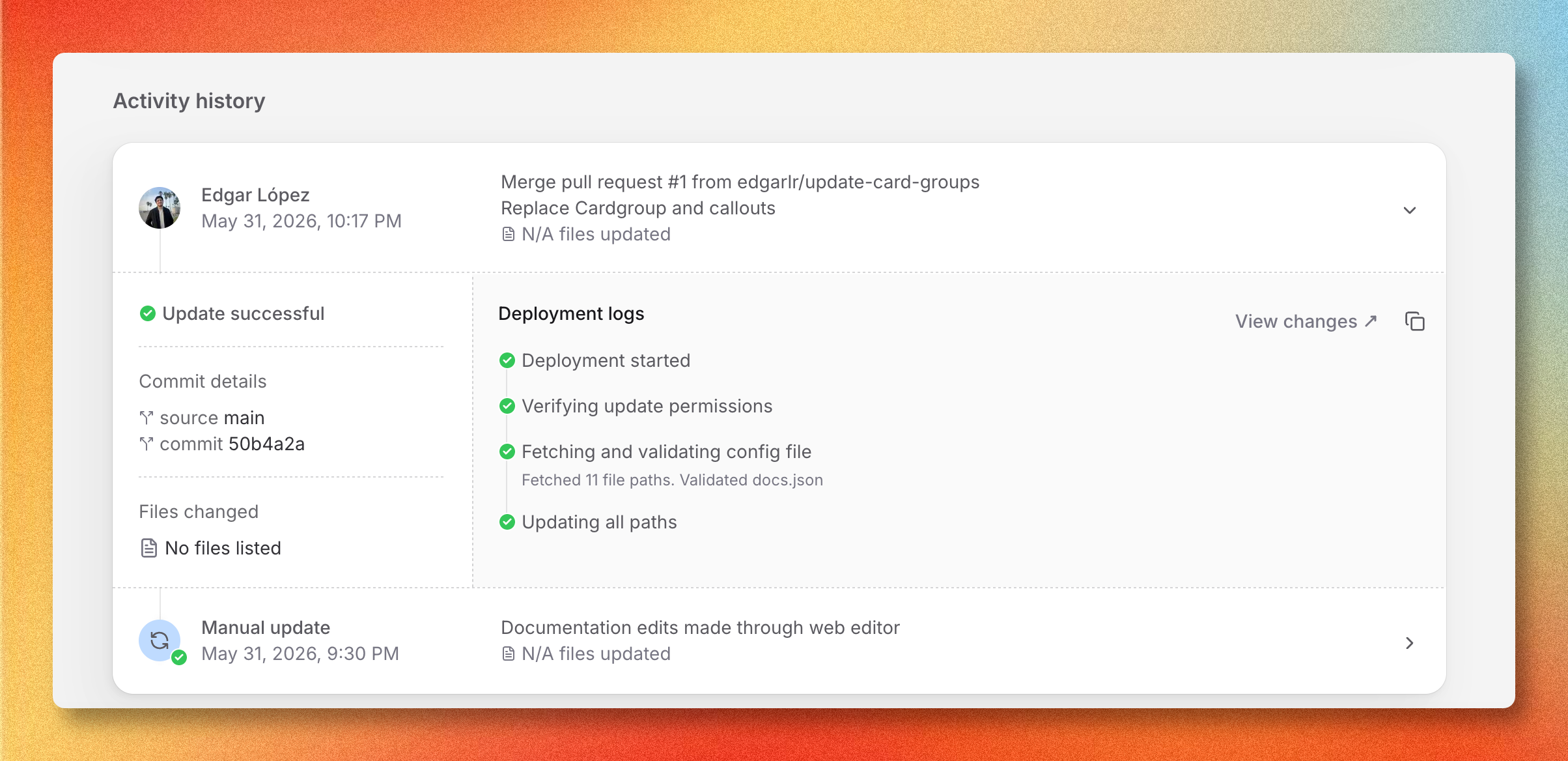
Open your site dashboard and find Activity history. Each row in the list is one deployment, with its status badge, author, commit message, and number of files changed.
Select a row to expand it. The right side shows Deployment logs: one entry per build step, with a status icon and any error metadata. Use View changes to jump to the commit on GitHub.
The four build steps are:
- Deployment started
- Verifying update permissions
- Fetching and validating config file
- Updating all paths
A step that fails shows the underlying error message inline.
Manual redeploy
To rebuild the current commit without pushing new code, open your site dashboard and select the refresh icon next to Go to editor. Bloques creates a new deployment using the latest commit on the publishing branch.
Use a manual redeploy after fixing an environment-level issue, for example after reinstalling the GitHub App or restoring repository access. For content changes, push a commit instead.
Failed deploys
Open the failed deployment in Activity history and read the log entry marked as errored. The two most common failures: