

Editor overview
The Bloques editor layout and the save and publish flow.
The Bloques editor opens a branch of your repo in the browser, lets you edit pages as visual blocks or raw MDX, and writes your changes back as commits.
Layout
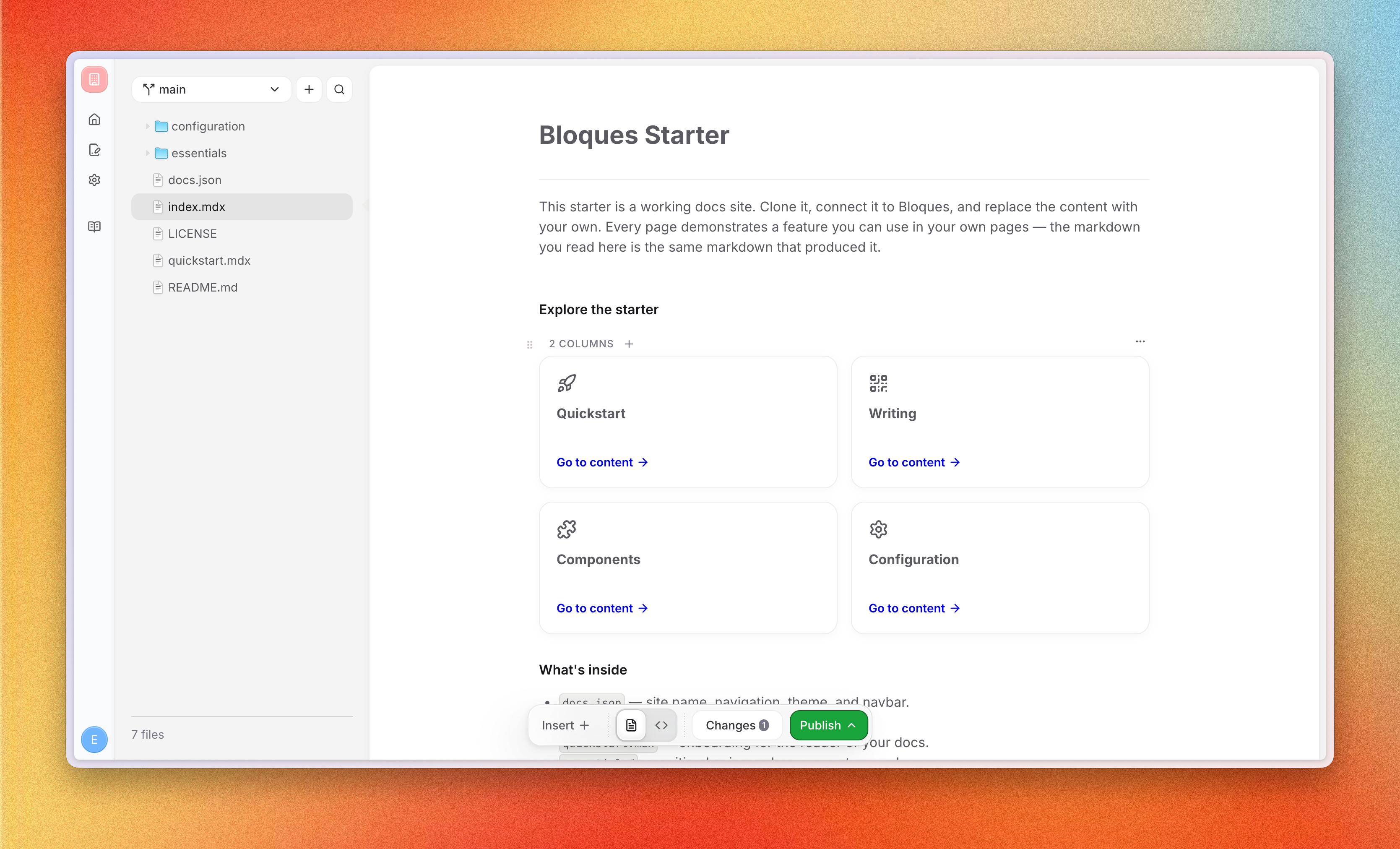
The editor opens in two columns with a floating toolbar.
The file tree on the left mirrors the contents of the branch you opened. Folders expand inline, and selecting a file opens it on the right. New files, renames, moves, and deletes all happen here and stay local until you save.
The editor fills the right column. Markdown and MDX files open in the block editor; other text files open in a code view; images open in a preview. Only one file is open at a time, and switching files keeps your unsaved edits intact.
The toolbar floats at the bottom. It holds the insert-block button, the view toggle for switching between visual and source mode, a summary of pending changes, and the Save and Publish buttons.
Editing a page
In visual mode, every paragraph, heading, image, and component is a block. Hover a block to reveal its drag handle, select it to edit the text inline, and use the side menu to delete or reset it. Components have a settings popover for their props.
In source mode, the same file opens as raw MDX. Edits in either mode write to the same file on disk, so switching back and forth is safe.
The slash menu
Type / anywhere in the visual editor to open the slash menu. Filter by name to insert headings, lists, images, or custom components like callouts, cards, and steps. For the full list of components and their props, see Components.
Save vs publish
Edits live in your browser until you act on them. The toolbar shows how many files have pending changes, and a diff view lets you review them before committing.
Save commits your pending changes to the current branch. Use it on a working branch to checkpoint progress without touching your live site.
Publish behaves differently depending on the branch. On a working branch, it opens a pull request against the default branch. On the default branch, it commits directly and triggers a new deployment of your site.
A branch only deploys to your live site when changes land on the default branch, either by publishing directly or by merging a pull request.
Supported file types
The editor opens Markdown files in the visual block editor:
.mdx: Markdown with embedded components. Use this for pages that need callouts, cards, or any other Bloques component..md: Plain Markdown. Standard headings, lists, links, and images, with no component support.
Other text files open in a code view, and images open in a preview.
Next
Browse the full set of blocks in Components.